
Docker Desktop#
Note
If you are using Windows Subsystem for Linux (WSL), you can use AiiDAlab launch to automate much of the setup process described below. Please refer to the AiiDAlab launch guide for more information.
Important
The following steps require Docker Desktop. If you have yet to install it, please follow the instructions to install Docker Desktop.
Open the Docker Desktop app and follow these instructions to spin up an AiiDAlab container:
Fetch the AiiDAlab image#
On the left sidebar, click on Images
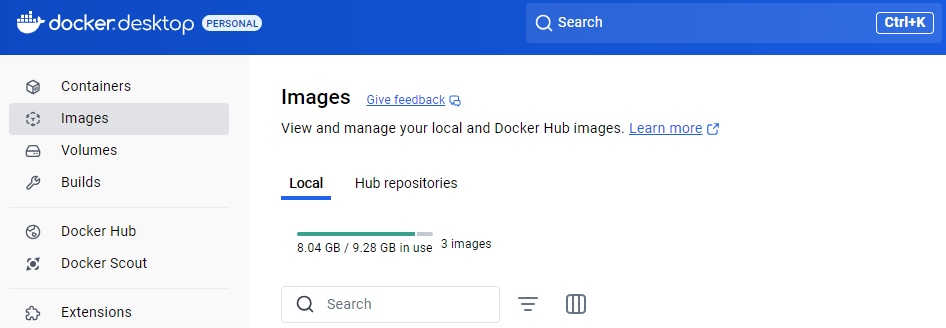
In the search bar at the top of the app
- Enter one of the following AiiDAlab images:
aiidalab/qe- pre-configured with the Quantum ESPRESSO app (recommended)aiidalab/full-stack- bare imageNote
We recommend the pre-configured image, as it includes much of the mechanics necessary to run a calculation on AiiDAlab. To learn more about the app, please visit the AiiDAlab Quantum ESPRESSO app documentations.
Select
latestfrom the Tag dropdown menuClick Pull to download the image
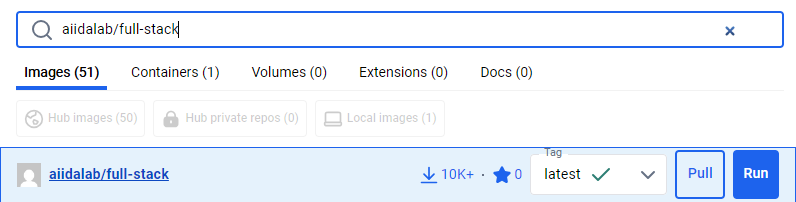
Once downloaded, the image will appear as a new line in the list of images

Exit the search menu when done
Create a persistent volume#
Important
To avoid losing your work when the container shuts down (manually, or when the machine is turned off), it is important to mount a volume (a local storage) on the container. Associating the volume with the user directory ensures the persistence of all user data.
On the left sidebar, click on Volumes
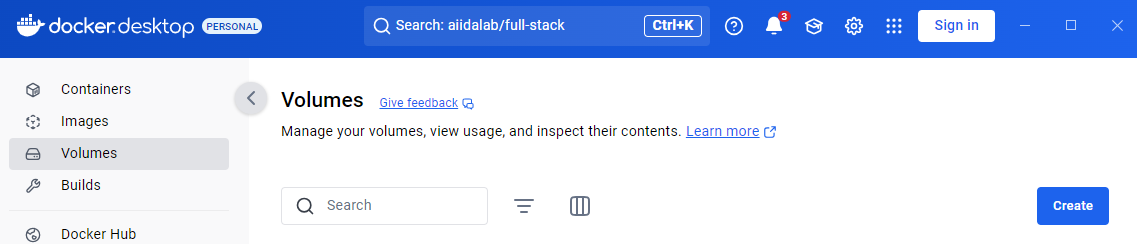
Click on Create
Name your volume (e.g.
aiidalab_home) and click Create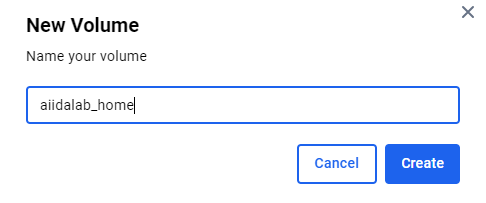
Repeat the process to create a second volume (e.g.
aiidalab_conda) for the conda environmentReturn to the Images panel
Create an AiiDAlab container#
From the new image line, under actions, click ▶️ to start a container instance

In the pop-up window, expand Optional settings
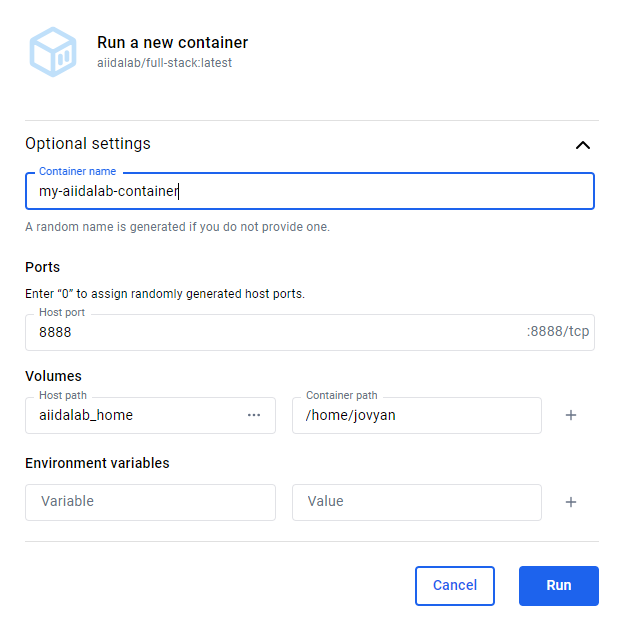
You may choose to name the container for easy reference (randomly generated otherwise)
Choose a local port from which to communicate with the container’s 8888 port (e.g.
8888)Associate your new volumes with the corresponding container directories
aiidalab_home–>/home/jovyanaiidalab_conda–>/home/jovyan/.conda
Click Run to start the container
Launch AiiDAlab#
On the left sidebar, click on Containers
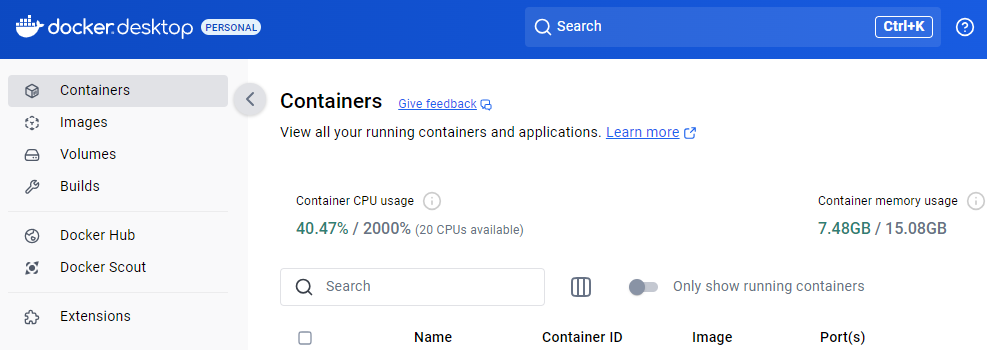
Click on the name of your newly-created container in the list of containers
Wait for the container build process to finish
When done, the log will show the following message

Click the
http://127.0.0.1:8888link at the top of the app to open AiiDAlab in the browserNote
If you selected a port other than
8888, you can change the port in the URLYou will now be redirected to the AiiDAlab home page