
App Store#
AiiDAlab provides for the distribution of a collection of notebooks in the form of apps through the AiiDAlab app store.
These apps can be installed, updated, and removed either via the command line using the aiidalab command, or via the App store.
Tip
All Terminal commands shown below, can in principle also be executed directly from the host via AiiDAlab launch’s exec function, for example:
$ aiidalab-launch exec -- aiidalab install <app-name>
Install a new app#
You can install new apps either using the graphical user interface via the App Store or on the command line ( Terminal).
Simply open AiiDAlab in the browser and click on the icon in the top navigation bar.

This will open the app store page in a new window or tab.
Optionally, select one or multiple categories to filter by:
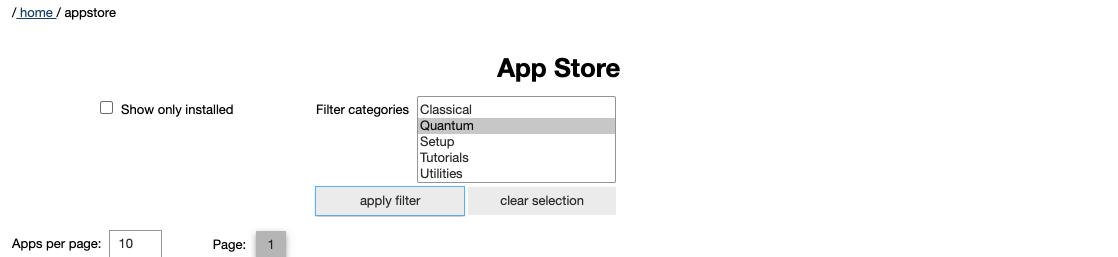
Then scroll down until you find the app you would like to install. An app that is not installed yet, will be presented like this:
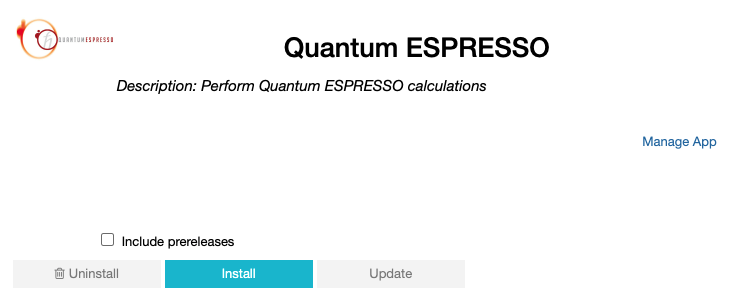
Clicking on the Install button will install the app and its dependencies.
In some cases the app developers will push prereleases which can be installed by clicking on the Include prereleases check box. Use this option only if you require access to a not yet released feature or you would like to test a new app version and provide feedback to the developer(s).
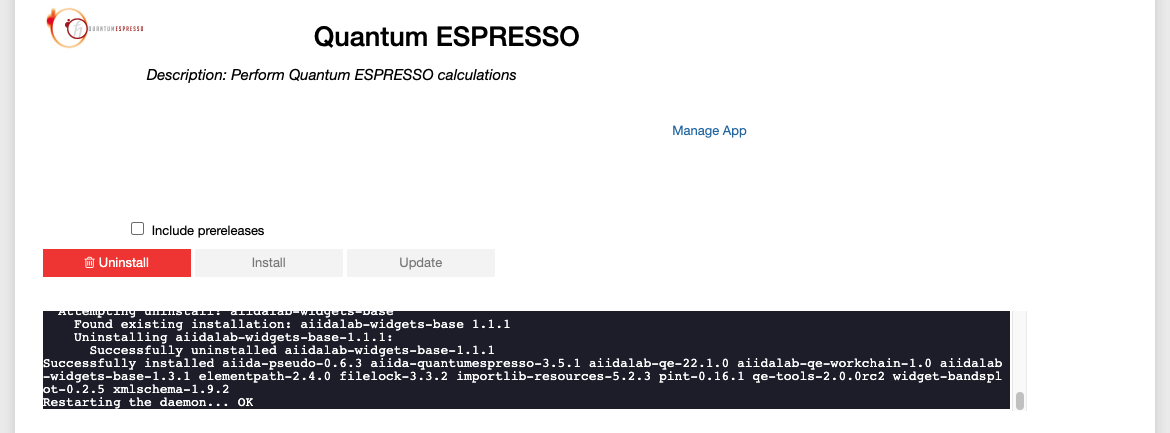
The current process for installing the app and its dependencies will be displayed via a terminal widget. Wait until the process has completed:
The newly installed app should now show up on the start page.
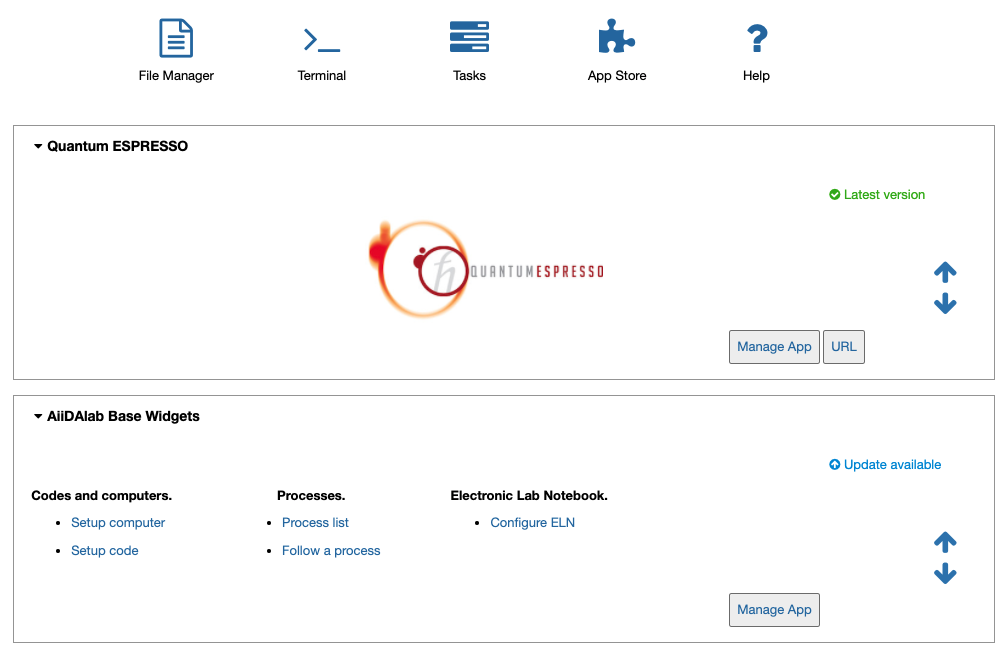
Each app banner also shows an indicator about whether there is an update available (see screenshot above). To update the app, click on Manage App and then on the Update buttons.
Open the by clicking on the corresponding icon in the nav bar.

$ aiidalab install <app-name>
Replace <app-name> with the name of the app you would like to install, e.g., aiidalab install quantum-espresso.
Use aiidalab search to search among available apps and their versions.
Similarly, the aiidalab list lists all currently installed apps and their versions.